How to use Sonarcast
Sonarcast is a workspace you assemble yourself, not a fixed screen. This page walks through what you can move, hide, save and configure — including the parts nobody finds on their own.
Updated September 19, 2026
The workspace: moving, resizing and hiding blocks
Every panel on screen is a block, and the arrangement is yours. This works the same way on the dashboard and on a coin card.
Sonarcast does not ship one fixed screen. Everything you see is built from blocks, and each block can be dragged to a new place, resized, or taken off the desk entirely. Most people never discover this, so it is the first thing worth knowing.
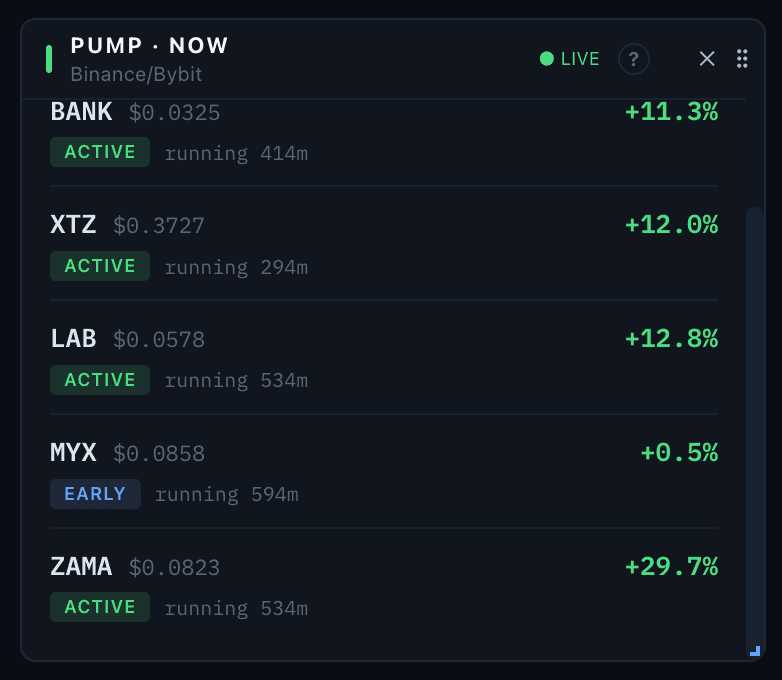
- 1Drag the block by its header. The body does not drag, so charts inside stay pannable and text stays selectable.
- 2The question mark explains what the block shows and what its colours and arrows mean.
- 3The cross takes the block off the desk. It is not lost — it goes back to the block library.
- 4Drag the bottom-right corner to resize. Content that no longer fits scrolls inside the block rather than being cut off.
- Move
- Grab the block by its header strip, or by the grip icon in the top-right corner — it sits there faintly and brightens when you hover. The body of a block does not drag, on purpose: that leaves charts pannable and text selectable.
- Resize
- Drag the bottom-right corner. If content no longer fits, it scrolls inside the block rather than being cut off.
- Hide
- Click the small cross in the top-right corner. The block leaves the desk but is not lost — it goes back to the block library, which is where you bring it back from.
The block library is the catalogue of everything the terminal can show. On a coin card it opens from the Blocks button in the tab bar and has three tabs; on the dashboard it sits at the bottom of the page, carries a count of whatever you have hidden, and is a plain list — hide, restore, or bring everything back at once.
- Blocks — every block, grouped by the tab it belongs to. Clicking one puts it on the desk or takes it off.
- Presets — five ready-made desks: Intraday, Pump Fade, Derivatives, Swing and Minimal. Applying one replaces your current desk, so save yours first.
- My presets — your own saved desks, up to twenty of them.
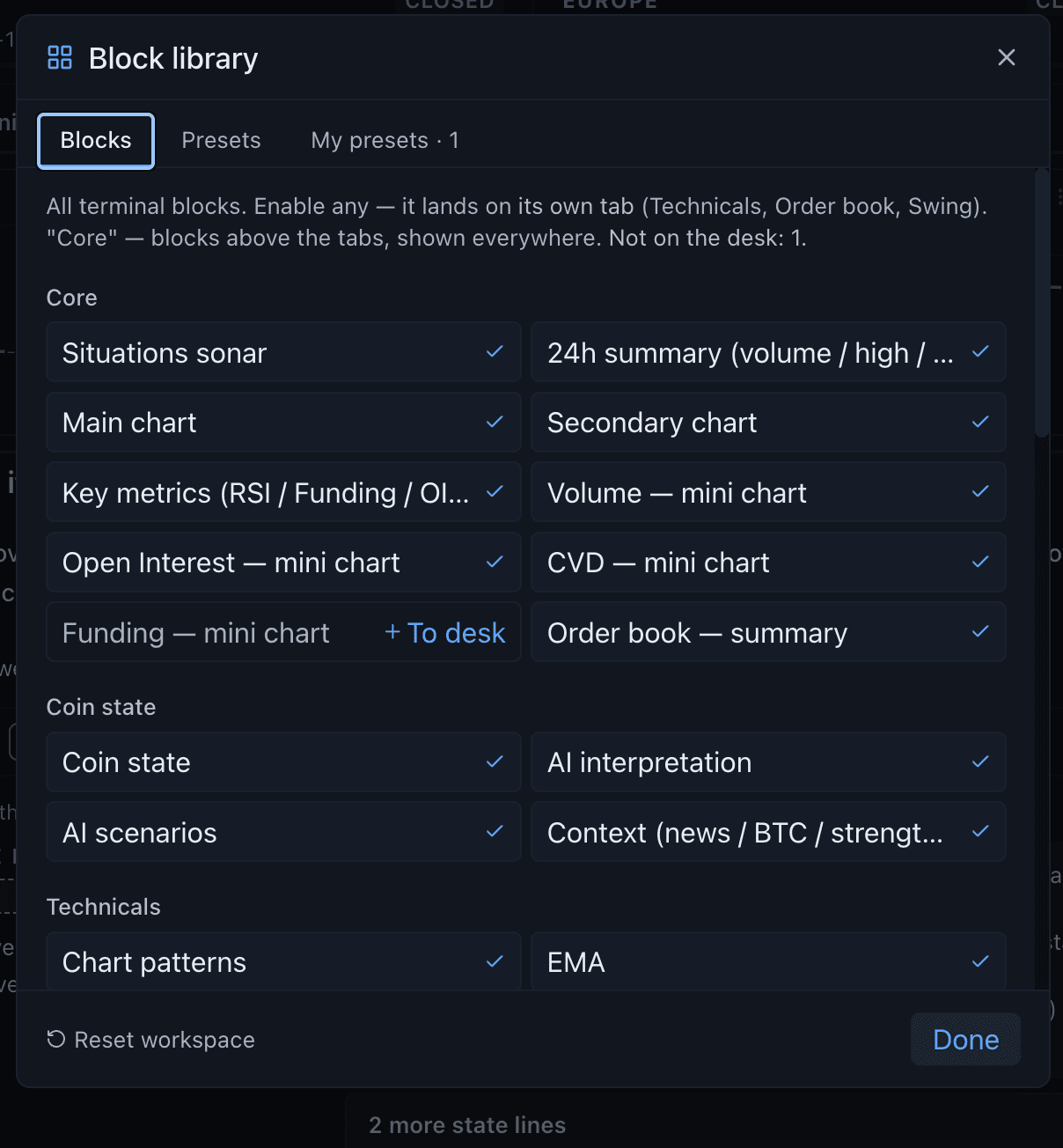
- 1Three tabs: every block, the ready-made desks, and the desks you saved yourself.
- 2A tick means the block is on the desk. Clicking it takes the block off.
- 3A block that is off the desk offers "To desk" instead. This is how a hidden block comes back — nothing is ever lost.
- 4Reset workspace brings hidden blocks back and returns layouts and tab order to default. The desks you saved survive.
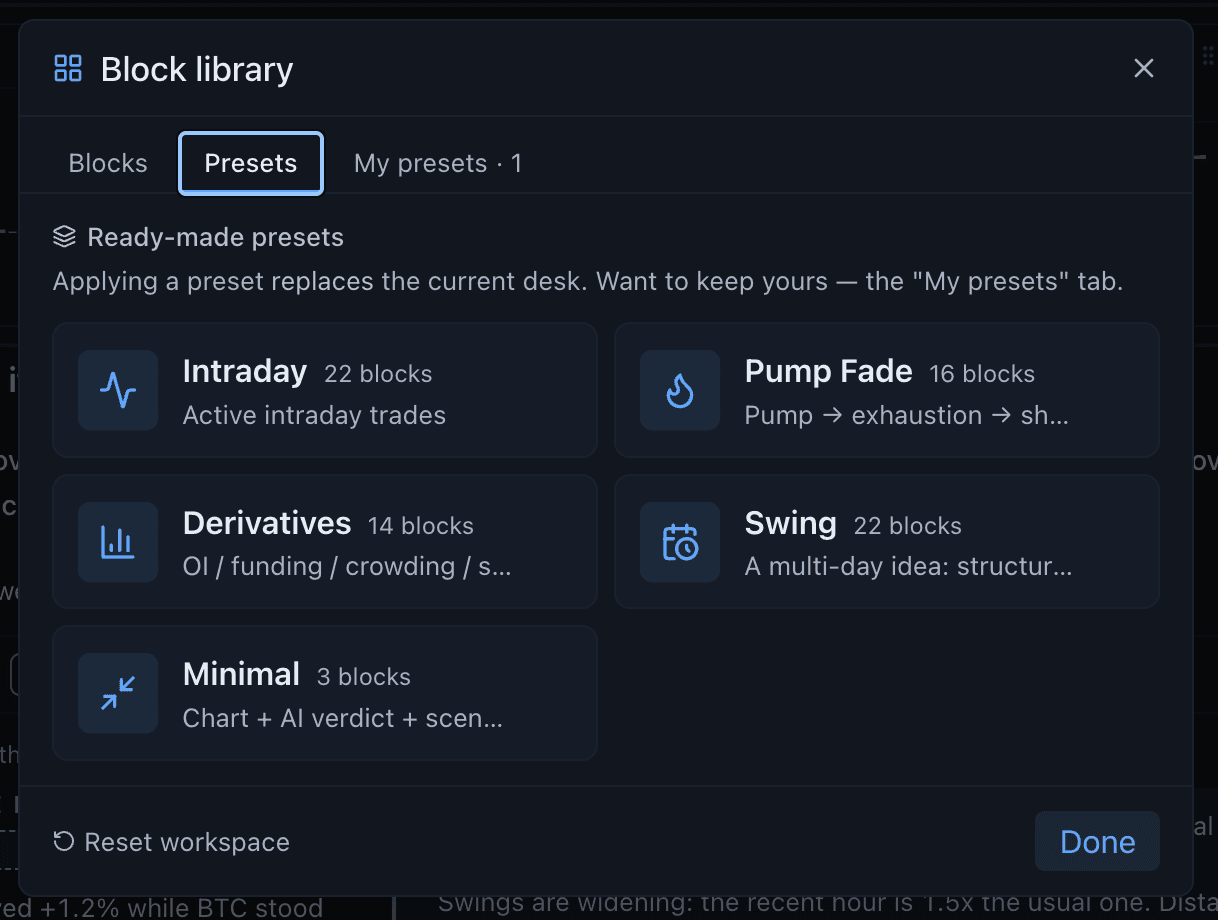
- 1My presets holds the desks you saved yourself; the counter shows how many.
- 2This line is the part worth reading: applying a ready-made desk replaces your current one. Save yours first.
- 3Each card says what the desk is for and how many blocks it puts on screen.
Three different controls use the word "save", and they do different things. This is the single most common point of confusion, so it is worth reading once.
- Automatic saving
- Your layout saves by itself every time you let go of a block after moving or resizing it. There is nothing to press.
- Save layout
- The button at the bottom of a coin card. It does the same thing, just immediately and visibly, and confirms it saved. It exists for reassurance, not because saving needs a button.
- Save current
- In the My presets tab. This is a different thing entirely: it takes a named snapshot of the whole desk — which blocks are hidden, every layout, the tab order — so you can try the built-in presets and come back to your own desk in one click.
- Reset layout
- Puts every block back to its default position and size. Hidden blocks, tab order and saved presets are left alone.
- Reset workspace
- In the library, behind a confirmation. A fuller reset: hidden blocks come back, layouts and tab order revert. Your named presets survive.
- Delete (on a preset)
- Removes that saved snapshot only. Your current desk is untouched.
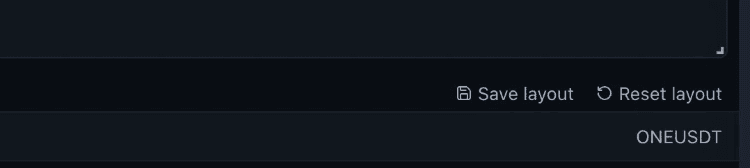
- 1Save layout writes the current arrangement right away. It is the same save that already happens by itself every time you let go of a block — the button just does it now, and says so.
- 2Reset layout returns every block to its default position and size. Hidden blocks, tab order and the desks you saved are left untouched.
A coin card has four tabs — Coin state, Technical, Order book and Swing — and they can be dragged into whatever order you prefer, the way browser tabs work. The top area with the charts and key metrics stays visible on all four; only the lower half changes.
The dashboard: what the market is doing
The screen you land on. Roughly two dozen blocks covering the market as a whole.
The dashboard answers "what is happening right now" before you have picked a coin. The top bar carries live prices for the majors, coin search, Moscow and UTC clocks, the coins you have under watch, and your account menu.
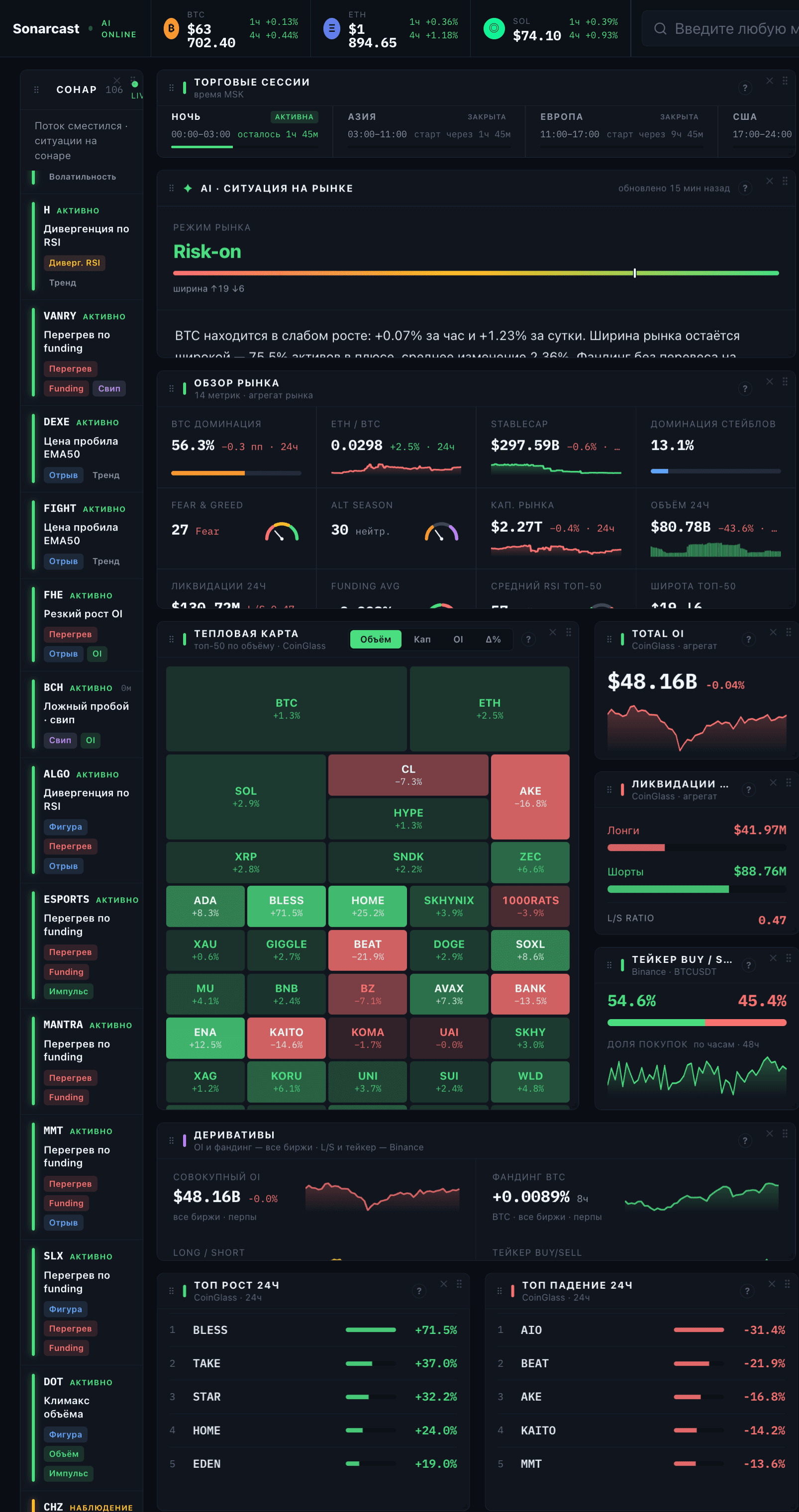
- Market overview — fourteen live metrics: BTC dominance, stablecoin dominance, market cap, volume, liquidations, average RSI, breadth, volatility.
- Heatmap — the top fifty as tiles, sized by volume, market cap, open interest or the size of the move.
- Screeners — pumps happening now with a stage attached, volatility squeezes, an RSI screener across four timeframes, biggest movers.
- Derivatives — aggregate open interest, funding, long-short ratio and taker flow.
- Context — news with AI-filtered noise, exchange listings, a calendar of macro events and token unlocks, and the largest on-chain positions with their liquidation prices.
- Trading sessions — Asia, Europe and the US, with the active one and how long it has left.
The sonar: situations as they form
A live feed of structural changes across two hundred coins.
The sonar watches roughly two hundred coins and surfaces what changed: liquidity sweeps, divergences, volatility squeezes, overheated funding, price stretched far from its averages, broken structure, chart patterns.

- Each entry is either active, meaning it is unfolding now, or watching, meaning it is early.
- The funnel icon filters by state, by type, by chart patterns only, and sorts by significance, freshness or coin.
- The play and pause control stops the feed drifting on its own, which helps when you are reading one entry.
- Clicking a coin opens its card.
The coin card
Everything known about one coin, on four tabs you arrange yourself.
Open a card from search or by clicking a coin anywhere in the terminal. The header carries the live price, a Take to work button that hands the coin to Guardian, links out to the exchange, and a freshness indicator showing when the data last refreshed.
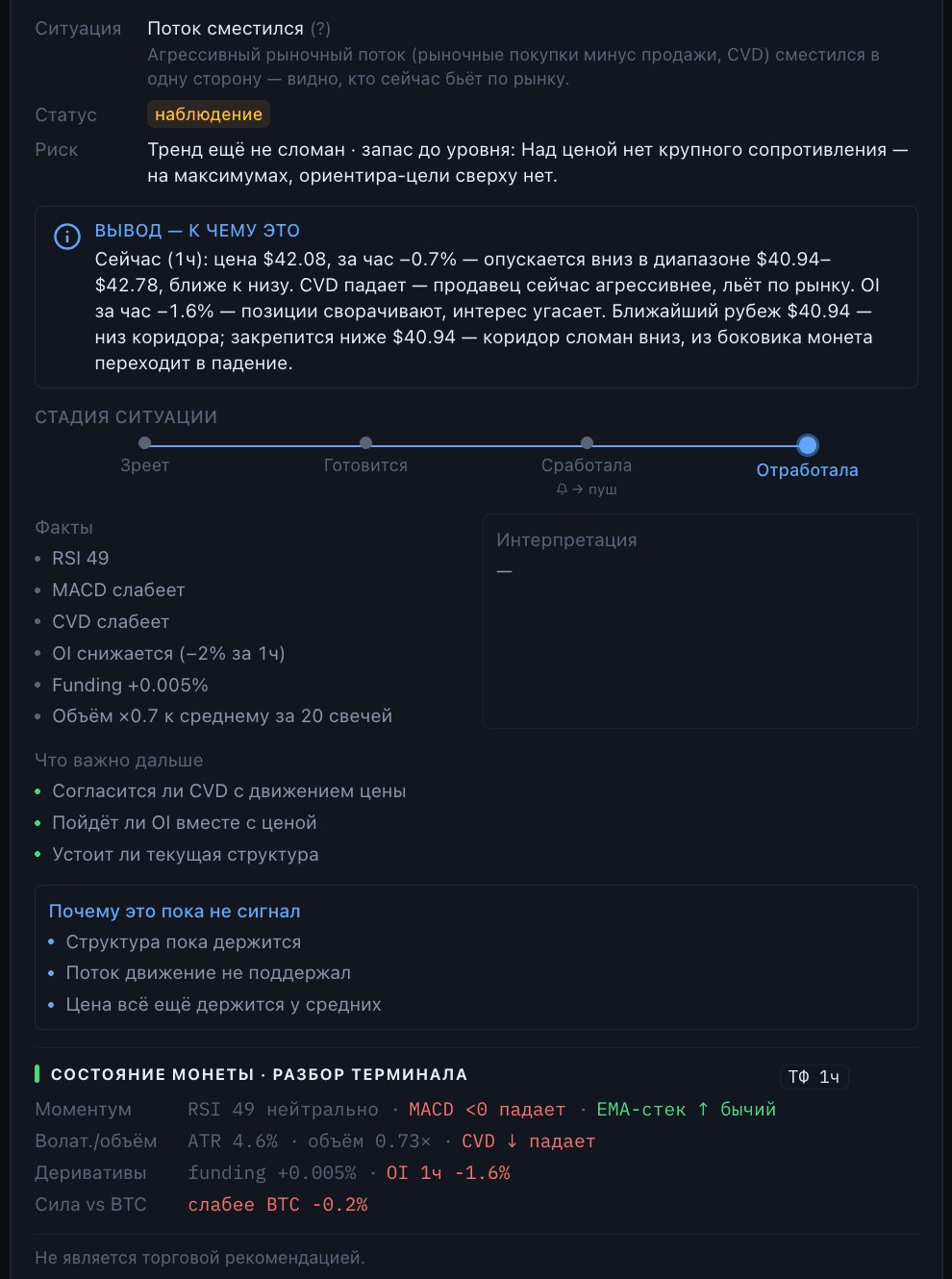
- Coin state
- The plain-language read: what is happening, the supporting facts, what matters next, and the AI interpretation and scenarios.
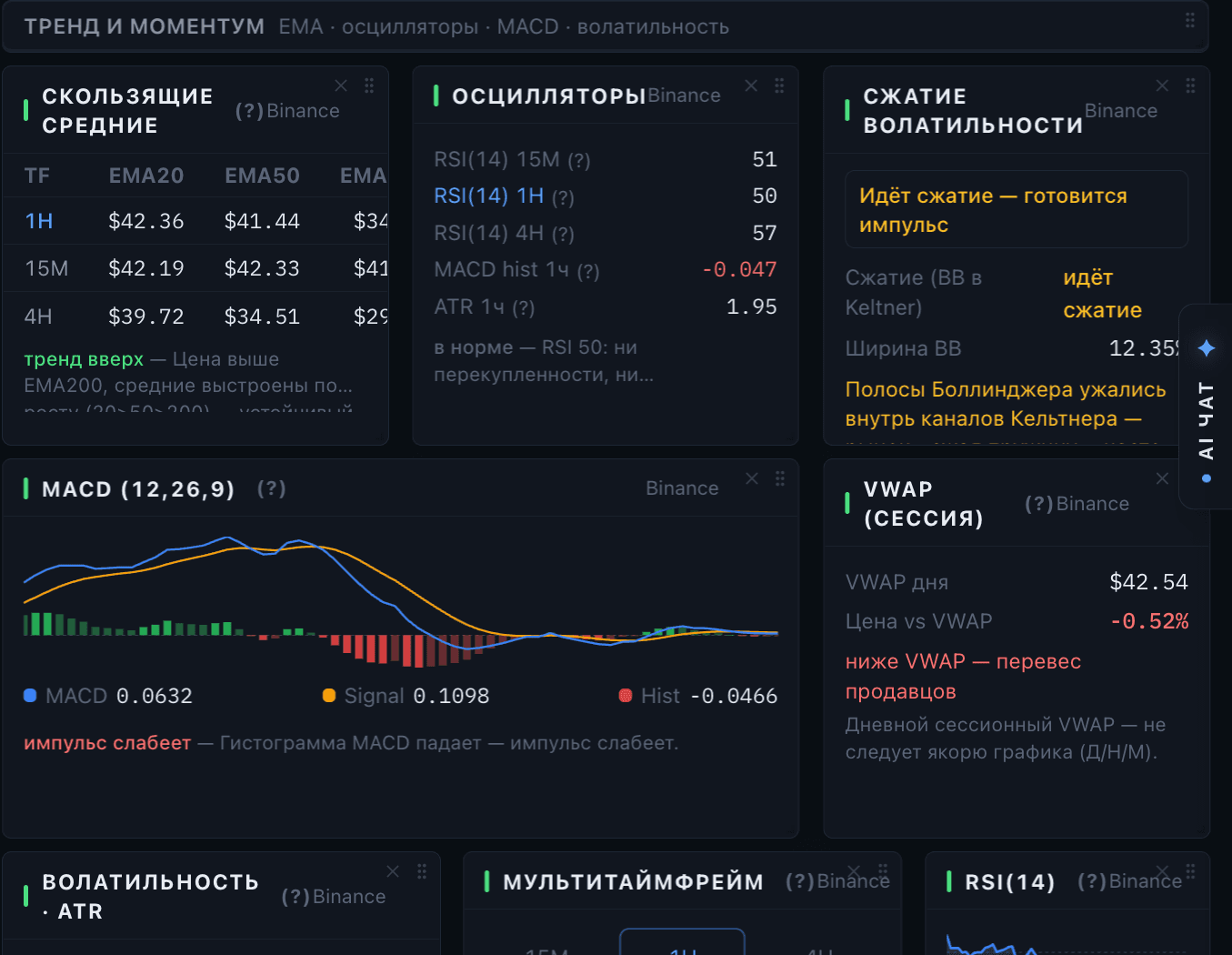
- Technical
- Moving averages, oscillators, MACD, volume profile, levels, market structure, price magnets, and the derivatives backdrop.
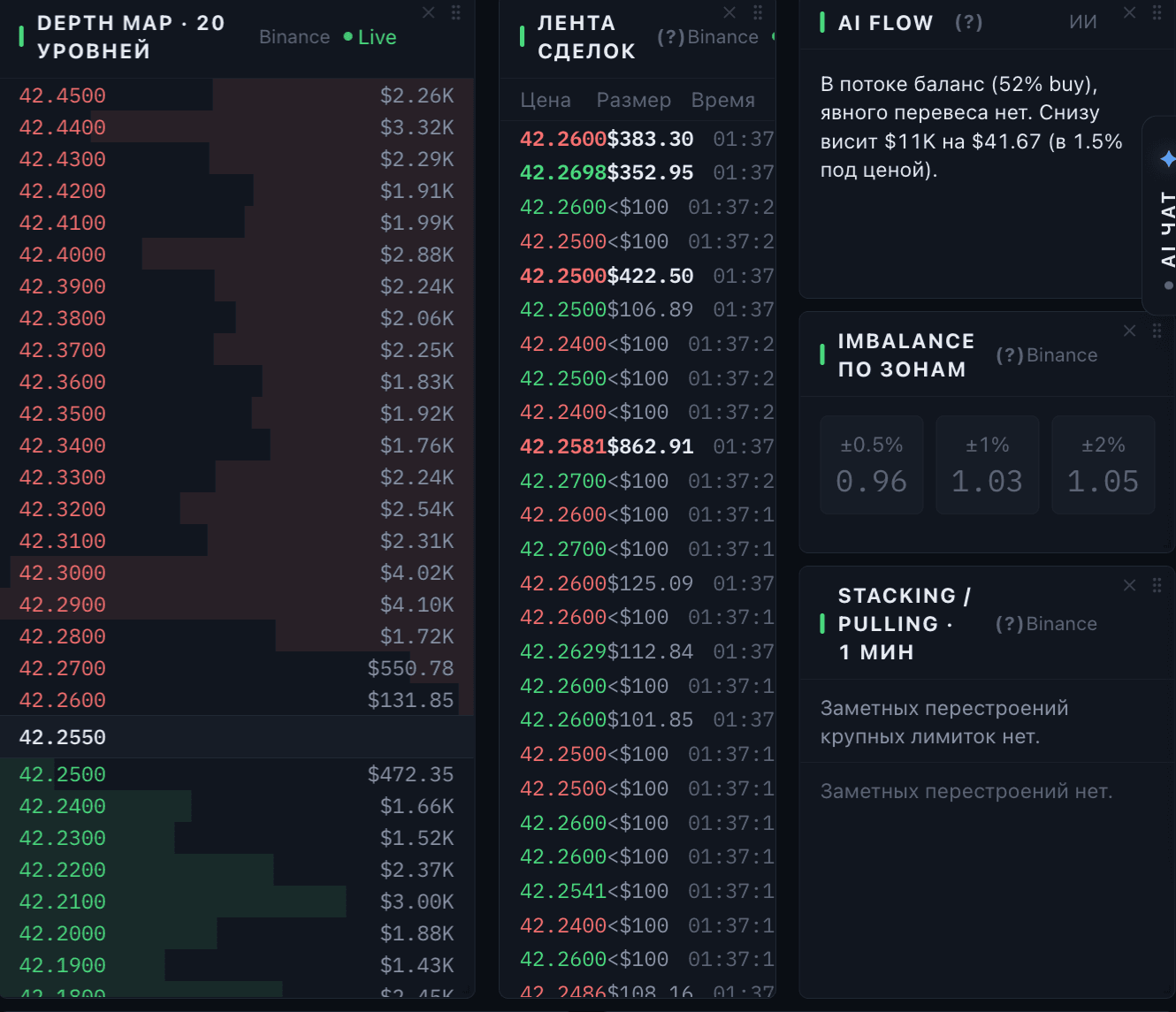
- Order book
- Depth map, trade tape, imbalance, walls, stacking and pulling, and the AI read of the flow.
- Swing
- The multi-day view: conclusion, risk flags, four-hour and daily structure, Fibonacci, holding cost and the funding and open interest backdrop.
Charts and markup
Five timeframes, the usual indicators, and a full markup layer with keyboard shortcuts.
A card carries two charts, each with its own timeframe and its own indicators. Timeframes run from five minutes to one day. A ticking countdown next to the current price shows how long the candle has left.
Indicators cover the moving averages, VWAP with a choice of anchor, Bollinger Bands, Keltner channels, chart patterns, volume profile and support and resistance zones. Whatever you switch on is remembered, and on paid plans it is remembered on your account rather than in the browser.
The markup layer is the part people miss. Every tool has a letter, and the letters work on any keyboard layout because they are read by physical key rather than by character.
- V
- Cursor. Markup off — the chart pans and zooms normally, but you can still grab a shape and move it.
- M
- Ruler. Holding the Alt key gives you a temporary ruler over any other tool.
- H
- Horizontal level.
- T
- Trend line, which extends to the right.
- L
- Segment — from point to point, with no extension.
- Y
- Vertical line, to mark a moment in time.
- Z
- Zone.
- F
- Fibonacci.
- P
- Position calculator: place three levels and it states the risk, the target and the ratio between them.
- Pressing the same letter again turns the tool off. Escape cancels. Delete removes the selected shape. Control or Command with Z undoes.
- The magnet is on by default: a point snaps to a level we have already calculated — VWAP, a moving average, a support zone, the wick or body of a candle — and the label tells you what it caught.
- Markup belongs to the coin, not the timeframe. A line drawn on the hourly chart sits on the same candles on the fifteen-minute chart.
Guardian: coins you have taken to work
Hand a coin to Guardian and it watches the conditions you set.
Take to work on a coin card hands that coin to Guardian. Pro watches three coins at a time, Premium watches ten. The button in the header opens the list, with a count against your limit.
When you take a coin to work you choose why you are watching, and on which timeframe the conditions are measured.
- Looking for an entry, or controlling a trade you are already in. The second asks for your entry price, so moves can be measured against your position.
- Conditions: a price level with a direction, a percentage move, a break of structure against you, an RSI extreme, a sharp build in open interest, or a MACD cross or exhaustion.
- Delivery: Telegram, email, or a pop-up while the tab is open. Any enabled condition firing sends the signal.
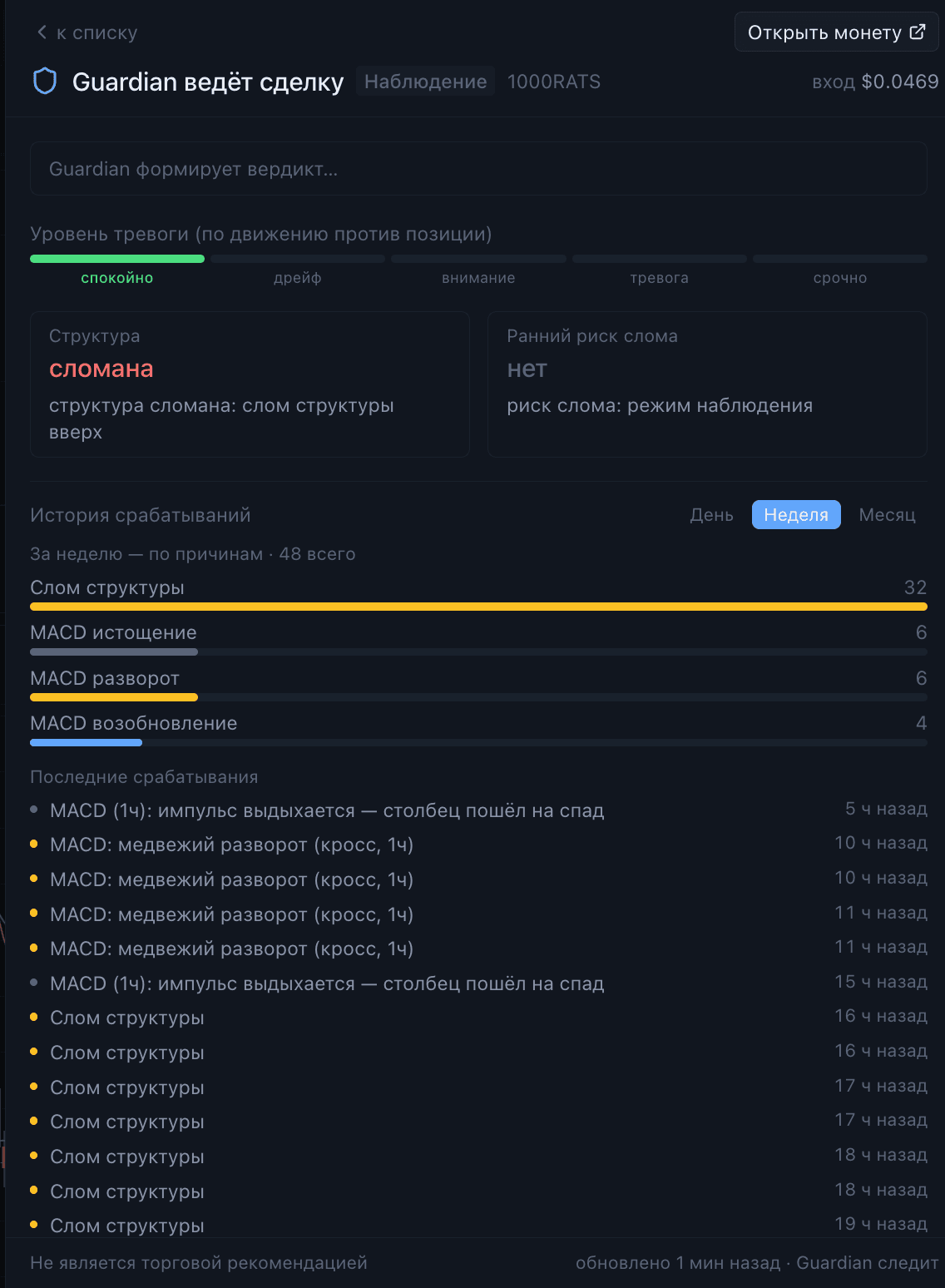
Once a coin is under watch, Guardian keeps a running read on it: an alarm level from calm through to urgent, whether structure is intact, weakening or broken, how close a break looks, what matters right now, and an honest self-check on whether the current picture argues against your position.

What the AI does, and what it does not
The AI puts findings into words. It does not decide anything.
Every analytical decision in Sonarcast is made by the rules engine — our own code, working on measured data. The model receives those findings already settled and writes them up in readable language. It is a translator, not a judge, and that is deliberate: it keeps the output honest and stops the system inventing numbers.
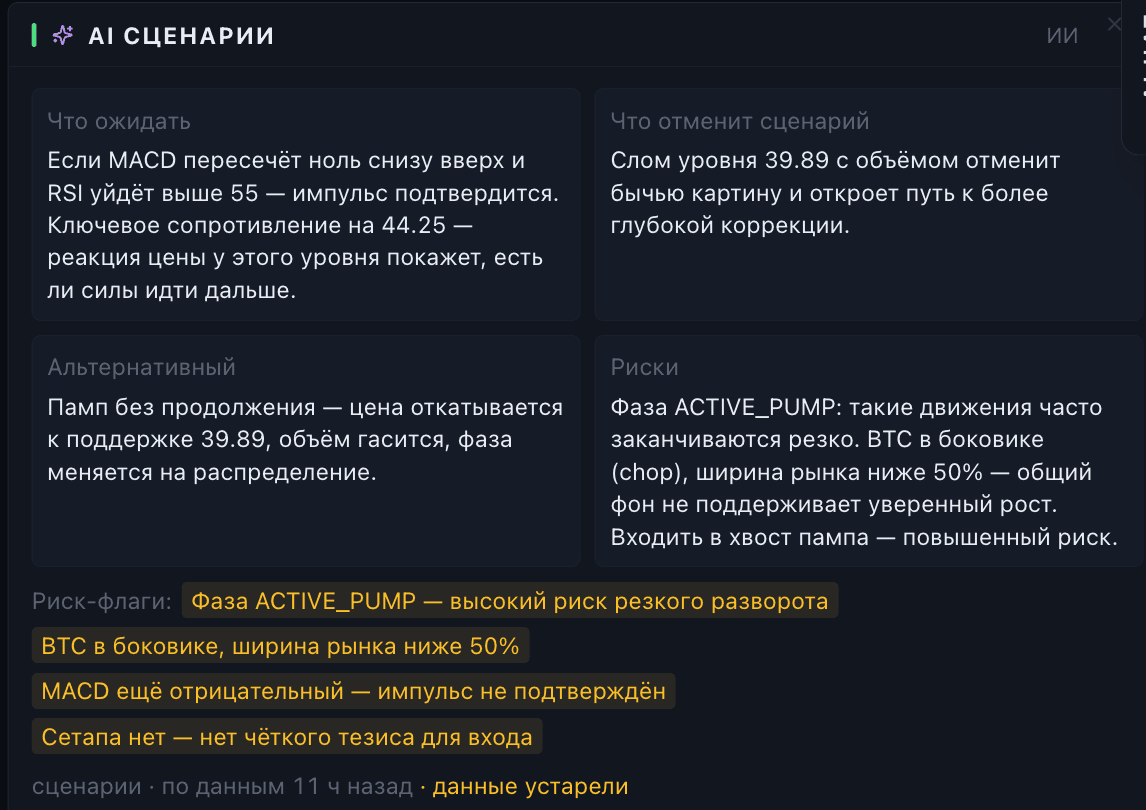
- Interpretation and scenarios on a coin card, and a swing summary on the Swing tab.
- A market situation summary on the dashboard, rebuilt on a schedule rather than tick by tick — the header says when.
- An AI chat that answers questions about the coin whose card is open, working from that card data. Message allowances are daily: ten on trial, thirty on Pro, a hundred on Premium.
Where the numbers come from
Every block says which exchange or aggregate it is reading.
Blocks carry a source label with an explanation behind it. This matters more than it sounds: the same metric can differ between venues, and knowing which one you are reading is the difference between spotting a discrepancy and being confused by one.

- My exchange
- The figures from the venue you trade on, so they match your own terminal. You pick your exchanges when you first sign in, and can change them in settings.
- Whole market
- Aggregated across exchanges: open interest, funding, liquidations, taker flow.
When data has not arrived, blocks say that plainly rather than showing an empty frame. That is a statement about the response, not a rendering failure.
Reports and notifications
Scheduled market reports, and where your alerts are delivered.
Premium accounts can receive a market state report three times a day — morning, midday and evening, on Moscow time. Each is switched on separately in settings.
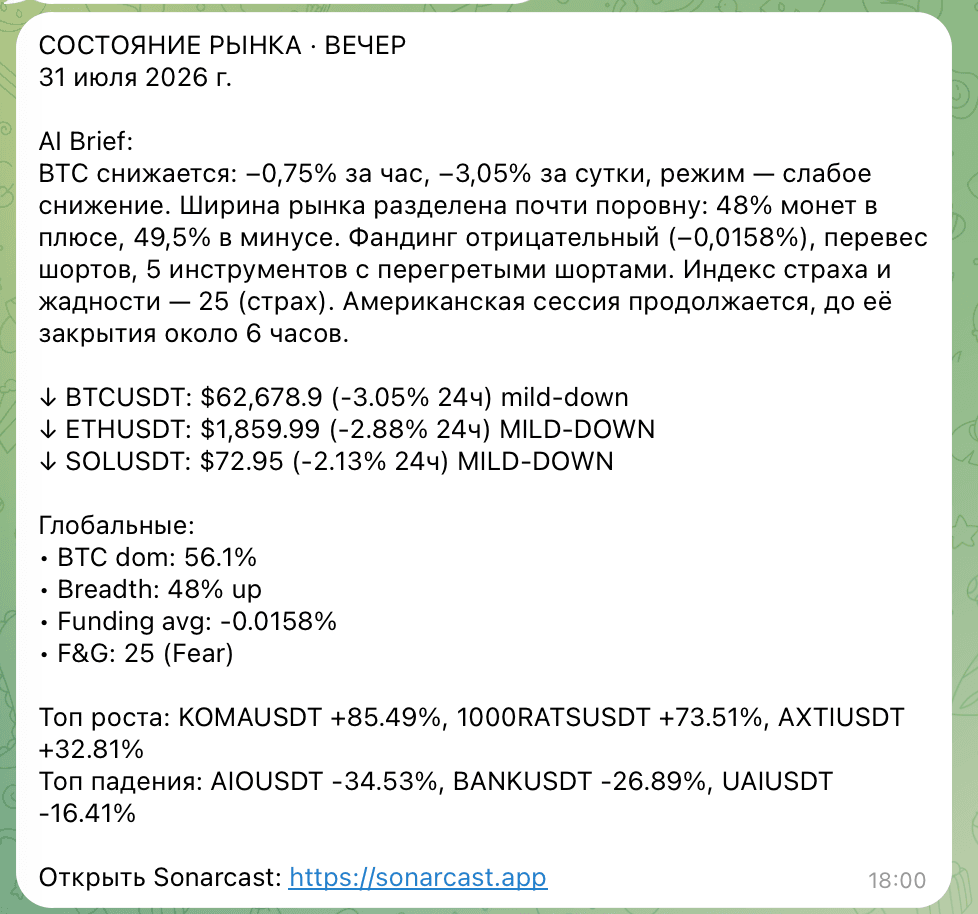
- Delivery channels are shared between reports and Guardian alerts: Telegram, email, and pop-ups while the terminal is open.
- Telegram needs one extra step — press Start in the bot, or it is not allowed to message you. There is a button in settings to verify the connection.
- If no channel is switched on, nothing is sent.
Account, exchanges and plans
Language, the exchanges you trade on, and what each plan opens up.
- Your exchanges: the dashboard and sonar show coins from the venues you pick, and cards show their figures. Search stays universal — you can always look up any coin.
- Language: English and Russian, from the account menu.
- Sign-in: email and password, Google, or Telegram. Confirming your email activates seven days of Premium.
- Guest
- The dashboard is always open. A coin card is fully readable for the first hour.
- Pro
- Coin cards with every metric, order-book summary, three coins under Guardian, and layouts synced to your account.
- Premium
- Everything: the full situations sonar, AI chat and scenarios, the complete order book with depth map, liquidation magnets, ten coins under Guardian with your own alert rules, and scheduled reports.